![spl-siana-imagotype-color.svg]](https://help.spalopia.app/hubfs/spl-siana-imagotype-color.svg)
To create and/or manage a treatment from your service menu, go to Manage > Treatments from the main menu. From this section, you can create new treatments or edit existing ones.
1. Access the treatments list
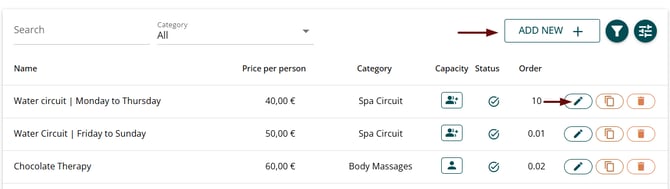
- Go to Manage > Treatments.
- To edit an existing treatment, find it in the list and click the edit (pencil) icon.
- To create a new one, click ADD NEW +, located in the upper-left corner.
2. Complete the treatment information
Status
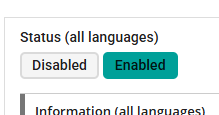
Select the treatment status:
- Disabled
The treatment is saved and available in Reports and Records, but it cannot be scheduled or booked online. - Enabled
The treatment is available in the Agenda and the Booking Engine.
Basic information
- Category
Select a category from the available options to organise the treatment within your service menu.
👉 How to create or edit service categories? - Translations
In this section, you can manage all the active languages used to publish your service menu.
For each language, you can complete the following fields:
👉 How to publish my service menu in other languages?- Name
The name of the treatment, visible to the customer. - Base price label
Text that replaces “Base price” in the Booking Engine (useful if you work with rates or extras).
👉 How to add custom prices and extras to a service? - Description
Optional, but recommended to better describe the treatment to the customer. - Specific terms and conditions
Add additional conditions specific to the treatment.
👉 How to edit the Terms and Conditions?
- Name
-
Photos
Add the image you want to display for this treatment.
Images must be owned by you or free of rights.
📌 Note: Images must have a 3:2 ratio (for example, 500 × 333 px) to ensure correct display in the Booking Engine and avoid automatic cropping.
💡 Tip: If you do not have a specific image, you can use the image database available via the Open File Browser link.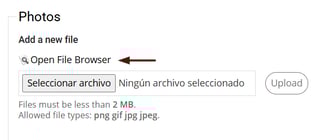
3. Treatment prices and options
Price
- Base price amount
The price of the treatment.
📌 Note: This amount will appear as “Base price” in the Agenda and the Booking Engine unless you have configured a specific Base price label in the translations section. In that case, the customised text will replace “Base price”.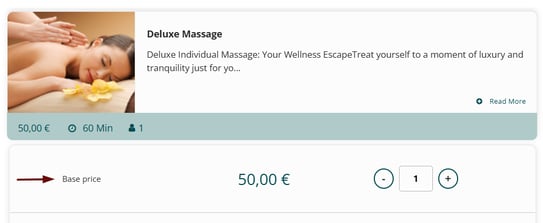
- Sessions
Configure vouchers with multiple sessions of the same treatment.
Enter the total voucher amount and the system will automatically calculate the applied discount.
👉 How to configure a voucher with multiple sessions?
📌 Note: This option is only available for gift vouchers.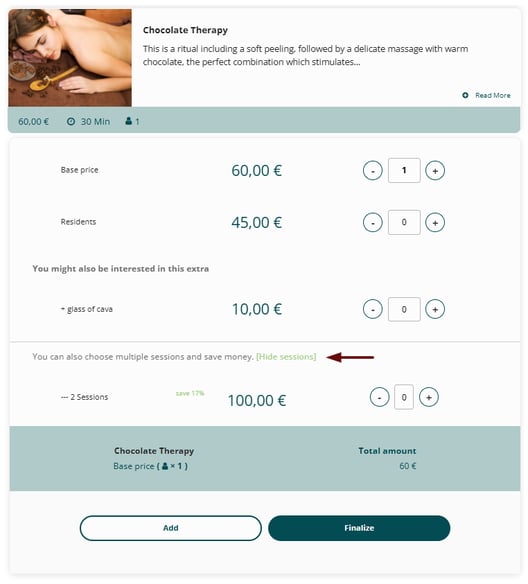
Custom prices
-
Allows you to define different prices for the same treatment.
👉 How to add custom prices and extras to a service?
💬 For example: resident rate or senior rate.
📌 Note: Available for gift vouchers and bookings (both in the Booking Engine and the Agenda).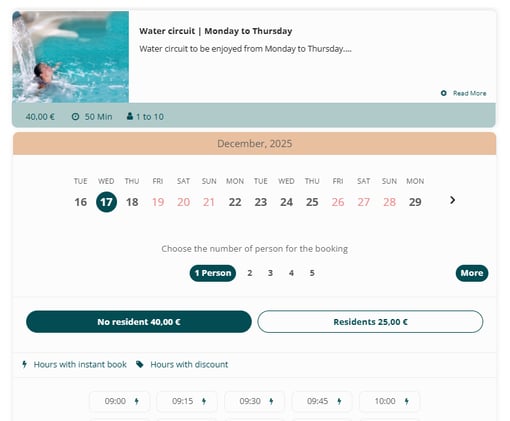
![]() Extras
Extras
-
Configure additional items related to the treatment.
👉 How to add custom prices and extras to a service?
💬 For example: a glass of cava, a towel, etc.
📌 Note: Only available for gift vouchers (both in the Booking Engine and the Point of Sale).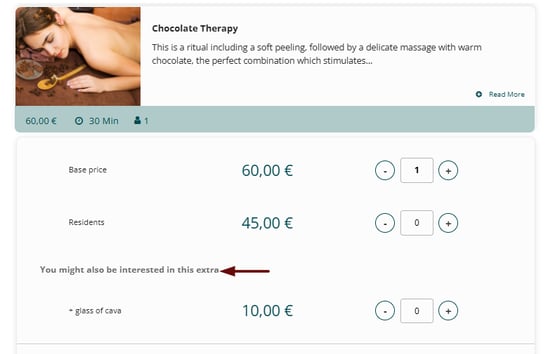
✉️ SUPPORT: Rates and extras must also be translated. Once they are created in Spanish, contact soporte@spalopia.com and provide the corresponding translations.
Offers
- Allows you to activate a promotion based on the purchase or usage date.
👉 How to create an offer?
Expiry date
- Set a different validity period for the treatment’s gift voucher.
👉 How to edit the expiry period of a Gift Voucher?
📌 Note: If a gift voucher includes several treatments with different expiry dates, the earliest expiry date will apply.
4. Treatment configuration
Treatment type
Select one option:
-
Single service
One therapist attends one customer. -
Couple service
Two therapists attend two customers. -
Advanced
Any other configuration different from individual or couple.
💬 For example: four-hand massage (two therapists and one customer) or spa circuit access (no therapist required).
If you select Advanced, you must also complete:
- Capacity (people)
Number of people who can book the treatment at the same time. - Increment
Interval at which additional people are added to the booking.
💬 For example: in a shared double treatment, the number of people increases in steps of two. - Minimum number of people
Minimum number of people required to make a booking.
📌 Note: If several bookings share the same resource, enable the group service option.
💬 For example: spa or pool access.
Online sales options
- Prepayment required
The booking is paid online.
📌 Note: Mandatory if you work with Virtual POS (Redsys or CECA) or PayPal; optional if your payment method is Stripe. - Packages only
Defines whether the treatment is only available within a package and cannot be booked independently.
👉 How to create and configure a package? - Enable online bookings
Determines whether the treatment can be booked through the Booking Engine.
📌 Note: From this same dropdown, you can also enable the appointment request option (only available with Stripe). - Enable online vouchers
Allows this treatment to be purchased as a gift voucher in the Booking Engine.
💡 Tip: If you disable both online booking and vouchers, the treatment will only be available internally (Agenda).
Assignments
-
Employees
Select the professional who can perform the treatment.📌 Note: For a service to show availability in the Agenda and the Booking Engine, at least one therapist with a configured schedule must be assigned. To select them in the service, first add the centre’s professionals and load their schedules.
👉 How to create and configure an employee?
👉 How to set up a employee's schedule? -
Resources
Select the space where the treatment is performed.
👉 How to create and configure a resource?
Time periods
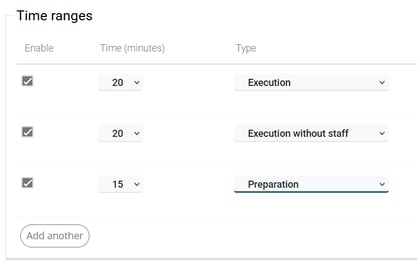
Set the treatment duration in minutes, according to the sequence order.
Available options:
- Execution (part of the treatment duration; the customer is present)
- Execution: requires professional and resource
- Execution without staff: resource only
- Execution without resource: professional only
- Preparation
🔍 How it works: Preparation periods are not part of the time visible to the customer, but they do block resources or professionals in the Agenda, depending on the selected configuration.
- Preparation: blocks professional and resource
- Preparation without staff: blocks resource only
- Preparation without resource: blocks professional only
💬 For example: a ritual combining 20 min of execution, 20 min of execution without professional, and 15 min of preparation.
5. Schedules
Schedule required
- Enable this option if the treatment has a schedule different from the centre’s general schedule.
👉 How to configure a specific schedule for a service?
⚠️ Warning: If you enable this option but do not follow the instructions in the manual, the treatment will not be available for booking.
Capacity per time slot
-
Define how many people can access the treatment for each configured start time.
🔍 How it works: If you set capacity per time slot, you must also select the Start times. Otherwise, the system will not know when to apply the limit and will not show availability for any time.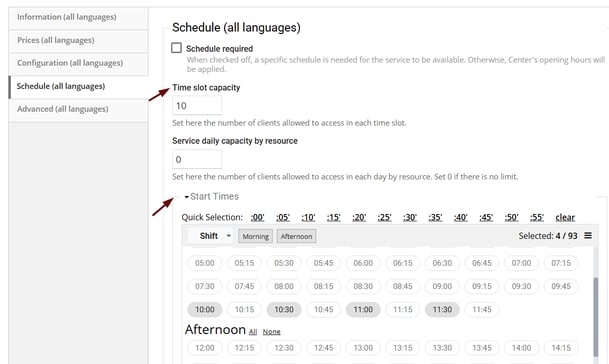
Start times
-
Select the times at which this treatment can be booked (as long as therapist and room availability exists).
-
The frequency of available times depends on the configured connector and can be set at intervals of 5, 10, 15, 30, 35, 40, 45, 50, 55, or 60 minutes.
💬 For example: if your connector is set to 30 minutes, you can select times such as 10:00, 10:30, 11:00, etc.
✉️ SUPPORT: If you want to change the connector, write to soporte@spalopia.com and let us know how you would like it to be configured.
⚠️ Warning: These connectors affect the entire service menu.
Daily capacity per resource
- Limits the total number of daily accesses, regardless of the configured time slots.
6. Advanced configuration
Release
- Defines the minimum advance time (days, hours, or minutes) required to book the treatment in the Booking Engine.
📌 Note: If a customer attempts to book with less notice than configured, the Booking Engine will not show availability for that time.
Additional costs
-
Assign the total treatment cost, including product costs, additional costs, and professional commission.
Sales channels
- Select the sales channels in which the treatment will appear.
👉 How to create and/or edit sales channels?
Customer groups
-
Define whether the treatment is available for specific customer groups.
👉 How to create and/or edit customer groups in the CRM?
💡 Tip: If a sales channel or customer group has a different price from the Base price, you can configure it to update automatically in the Agenda or Booking Engine.
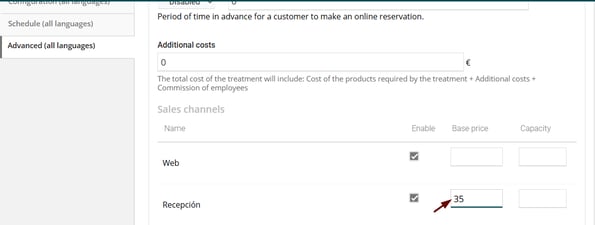
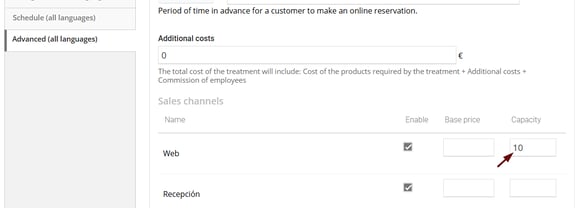
📌 Note: In the capacity column, you can define the maximum number of bookings for this treatment within a time slot. Once this limit is reached, that sales channel or customer group will stop showing availability.
💬 For example: if the capacity assigned to the website is 10, once that number of bookings is reached for the same treatment and time slot (regardless of the sales channel or customer group), the website channel will no longer show availability for that time.
Color
- Select the colour used to display the treatment in the Agenda.
👉 How to customise my Agenda using colours?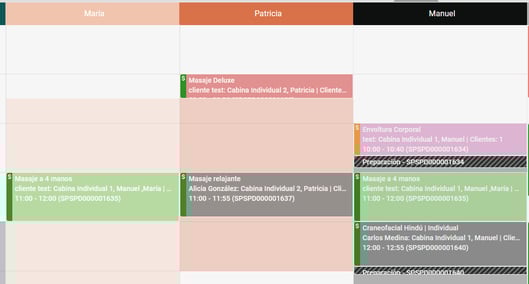
Products
- Assign the products and quantities used during the treatment execution for cost control.
👉 How to import my cabin and cosmetic products?
Commissionable price
- The professional’s commission will be calculated based on this price. You have three options:
-
- Empty field: the system uses the Base price as the commissionable price.
- Enter a price: commission is calculated based on this price (different from the Base price).
- Enter €0: no commission is calculated for this treatment.
📌 Note: By default, commission is calculated as described above, but you can also configure it to be calculated based on the price recorded in the Agenda for the appointment. 💬 For example: if a discount is applied to the customer, commission will be calculated on the final amount shown in the Agenda.
✉️ SUPPORT: To change this default behaviour, write to soporte@spalopia.com.
Tax
- Select the treatment tax type in the Point of Sale.
✉️ SUPPORT: If you need to adjust the available taxes, contact soporte@spalopia.com
Display order
- Determines the position in which the treatment is shown in the Booking Engine.
The lower the number, the higher the position.
💡 Tip: Negative and/or decimal numbers can also be used.
Remember to SAVE all changes before leaving the page.
📩 If you have any questions during the process, please write to soporte@spalopia.com