![spl-siana-imagotype-color.svg]](https://help.spalopia.app/hubfs/spl-siana-imagotype-color.svg)
If your center is going to be closed for a period of time, whether for the season or for maintenance, there are several actions you can take in the back office to inform your customers and avoid bookings on those dates.
⚠️ Warning: remember to revert all these actions once the closure has ended.
Below you will find the main recommendations. You can apply all of them or only the ones that best suit your case.
How do I include the closing dates in the Terms and conditions?
It is recommended to add the closure information to the general Terms and conditions, as the customer must accept them before completing their booking or purchase.
🔍 How it works: this information is shown on screen and in the confirmation email the customer receives after completing their purchase.
👉 How to edit the Terms and Conditions?
How do I show an important message in the Booking engine?
You can also add a highlighted message at the top of the Booking engine, just before the list of treatments, so that the customer sees the closure notice as soon as they enter.
👉 How to display an important message to the client?
How do I block the Agenda during the closure?
If your center has online booking enabled, it is recommended to block the closing period in the Agenda. The procedure depends on whether the whole center closes or only one resource.
Full closure of the center
👉 How to set up the center's schedule?
- Go to Agenda > Schedule > Center schedule.
- Click (+).
- Select the closing period.
- Select the Block option.
- Check the All day box.
- Save the changes.
Closure of a single resource
👉 How to configure a resource schedule?
- Go to Agenda > Schedule > Resource schedule.
- Click (+).
- Select the affected resource.
- Set the closing period.
- Select the Block/Maintenance option.
- Check the All day box.
- Save the changes.
How do I deactivate bookings and gift voucher purchases?
If you prefer, you can temporarily deactivate these Booking engine options so that no bookings or purchases can be made during the closure.
- Go to Agenda > Settings > Connector.
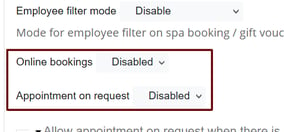
- Deactivate Online bookings, Appointment on request or both, depending on what you need.
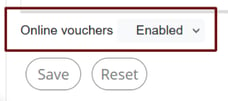
- Deactivate Online vouchers if you also do not want to allow the sale of gift vouchers during the closure.
📩 If you have any questions during the process, please do not hesitate to write to us at soporte@spalopia.com