![spl-siana-imagotype-color.svg]](https://help.spalopia.app/hubfs/spl-siana-imagotype-color.svg)
🧩Modules: This feature is only available if you have Agenda and Booking Engine contracted.
If you do not have one of these modules and would like to learn about their benefits, write to soporte@spalopia.com to book a free demo session.
When you create an appointment from the Agenda, you can also secure cancellation or no-show charges by requesting payment confirmation from the customer. To do so, follow these steps:
1. Create the appointment
Go to Agenda and create a new appointment as usual.
👉 How to add a booking in the Agenda?
📌 Note: The customer must have an email address saved in their profile to send the confirmation request.
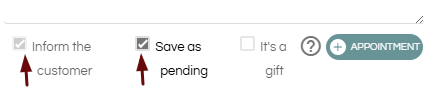
2. Enable “Inform the customer” and “Save as pending”
Before saving the appointment, make sure both options are enabled: “Inform the customer” and “Save as pending”.
3. Customer email delivery and confirmation
Once the appointment is saved:
- The customer will receive an email with a direct link to the booking.
- From that link, they can confirm the appointment by entering their bank card details.
🔍 How it works:
- By default, the customer has 30 minutes (configurable) to confirm the booking.
- If they do not confirm within that time, the appointment will be automatically cancelled and will disappear from the Agenda.
- Once the booking is accepted, the customer will receive a second email confirming the appointment.
✉️ SUPPORT: If you want to change this confirmation timeframe or review the email templates, write to soporte@spalopia.com.
How is the payment method used for this feature configured?
There are two possible configurations for this feature:
- Same conditions as online booking
📌 Note: This is the default configuration. - Charging a deposit to cover possible cancellation or no-show charges.
✉️ SUPPORT: To change this configuration, write to soporte@spalopia.com.
📩 If you have any questions during the process, please write to soporte@spalopia.com