![spl-siana-imagotype-color.svg]](https://help.spalopia.app/hubfs/spl-siana-imagotype-color.svg)
In Siana, you can generate a purchase receipt again whenever you need to provide a duplicate to a customer or keep it for administrative control.
How to locate the transaction to reprint?
To quickly locate the transaction, first identify which items were included in the original purchase:
- If the transaction includes a booking/appointment or a voucher (even if it also contains products): You can find it directly from the purchase confirmation by going to Reports > Appointments or Reports > Gift vouchers.
👉 How can I view a list of appointments?
👉 How can I view a list of gift vouchers?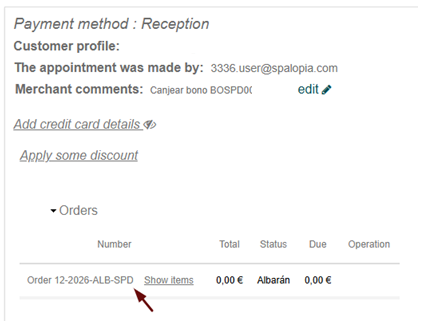
- If the transaction contains only products: You must locate it through the transaction history in Point of Sale > Transactions.
👉 What is included in the new Point of Sale transaction list?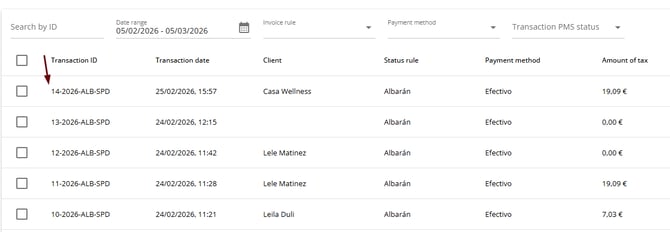
🧩 Product sales are managed from the Point of Sale module. If you do not have this module contracted and would like to learn about its benefits, write to soporte@spalopia.com to book a free demo.
How to reprint the receipt from the sales list?
Once you have identified the transaction content and date, follow these steps to obtain the receipt:
-
Go to Point of Sale > Reports > POS Journey Role.
-
Select in the calendar the date when the transaction you want to reprint was made.
-
Locate the corresponding transaction in the list displayed on screen.
🔍 How it works: By default, only transactions completed with a payment method are displayed. If you are looking for a voucher redemption transaction, change the filter to “None” in the top-right corner.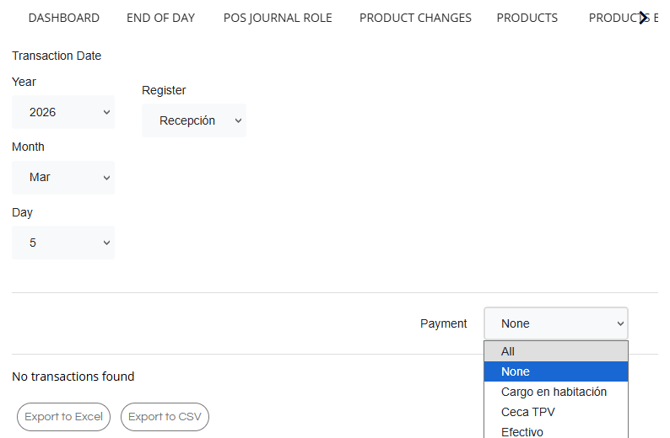
-
Expand the transaction by clicking on it.
-
Click the Print button.
🔍 How it works: The receipt will be printed on the device connected to your browser.
📩 If you have any questions during the process, please write to soporte@spalopia.com.