![spl-siana-imagotype-color.svg]](https://help.spalopia.app/hubfs/spl-siana-imagotype-color.svg)
The Record as deposit option in the Point of Sale allows you to record a partial payment for an appointment. You can also use it to collect payment for a full booking by splitting the payment into two or more payment methods.
✋ Important: If you work with a PMS integration, you must use this option to collect payment for a booking with several payment methods, so that the payments are recorded correctly.
How to record the deposit?
- Find the appointment in the Agenda or in the booking confirmation.
👉 How can I view a list of appointments? - Click the Point of Sale button in the booking.
- Click Record as deposit.
- Enter the deposit amount.
- Click Add.
- In Document type, select the document you want to generate.
🔍 How it works: The document type determines which payment methods are shown on the payment screen.
- Click Pay.
- Select the payment method.
💡 Tip: If the payment method you need does not appear, check the document type in the selector located on the right of the screen, below the summary, and change it if necessary.
- Check that the amount shown corresponds to the deposit.
- Click Add.
- Click Finish.
Result of the process
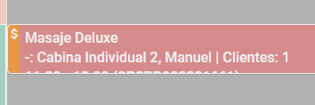
The deposit is recorded and the payment status of the appointment changes to partial. You can check this by the amber colour of the left side band of the booking in the Agenda.
How to complete the outstanding payment?
- Take the booking back to the Point of Sale.
- Complete the transaction with the outstanding amount.
👉 How to collect payment in the new version of the Point of sale?
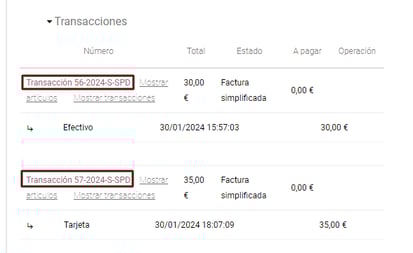
🔍 How it works: Once completed, both transactions are shown in the booking confirmation: the deposit and the payment of the outstanding amount.
📩 If you have any questions during the process, please do not hesitate to write to us at soporte@spalopia.com