![spl-siana-imagotype-color.svg]](https://help.spalopia.app/hubfs/spl-siana-imagotype-color.svg)
If you need to refund a payment made through Virtual POS, you must process it from your bank’s platform using the transaction ID associated with the appointment or gift voucher.
1. Access the confirmation
Go to the confirmation of the relevant appointment or gift voucher from the Records menu.
👉 How can I view a list of appointments?
👉 How can I view a list of gift vouchers?
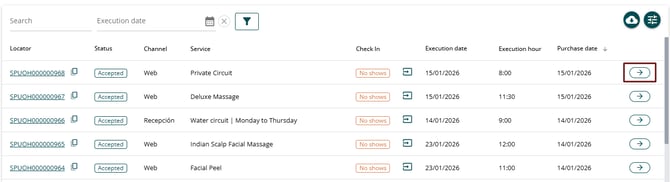
2. Locate the payment
-
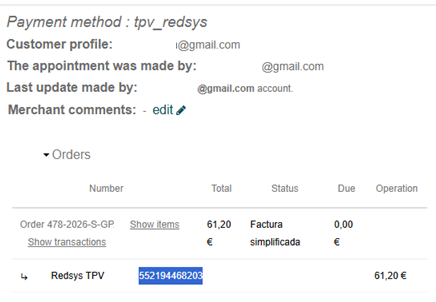
In the right-hand panel of the confirmation, locate the Orders section.
-
Click Show transactions.
-
A second line will appear showing the transaction ID generated at the time of purchase.
3. Process the refund from your bank
-
Copy the transaction ID.
-
Access your bank’s platform.
-
Locate the transaction using that ID and process the refund.
✋ Important: Siana does not have access to banking platforms, even if they are linked to the back office.
If you do not have access to this information, you must request assistance directly from your accounting team or banking institution.
4. Cancel the appointment or voucher
Once the refund has been completed in the bank, return to the corresponding confirmation and proceed with the cancellation.
👉 How to cancel an appointment in the Agenda?
5. Create a rectifying transaction (if applicable)
🔍 How it works: If you use the Point of Sale module, remember to also create a rectifying transaction so that the data is correctly reflected for accounting purposes.
👉 How to process a transaction refund (rectifying transaction) in the Point of Sale?
📩 If you have any questions during the process, please write to soporte@spalopia.com