![spl-siana-imagotype-color.svg]](https://help.spalopia.app/hubfs/spl-siana-imagotype-color.svg)
From the Agenda in the back office, you can download your appointments in Excel or PDF whenever you need to, with all the changes made up to that moment. This way, you can keep checking your schedule if there is an internet outage or if you simply need to have it on paper during the working day.
This download complements the daily backup that you receive automatically by email.
How to download the Agenda from the back office?
- In the back office, open the side menu.
- Click Agenda.
- Select the view you want to download.
🔍 How it works: you can download any of the available views: Day, Employee, Custom, Resource, Week, Work week and Agenda. The downloaded file shows the information according to the view you have selected. If you want to download the full Agenda, we recommend the Agenda view, which shows the appointments for the next 7 days starting from today, in order and with all their information.
💡 Tip: if you want to give each professional their printed appointments at the start of the working day, for example so they can take them to the treatment room, select the Employee view and print their Agenda in PDF. - Check that the dates you want to download are displayed.
- Click the download icon, a black circle with a white icon located next to the word Agenda.
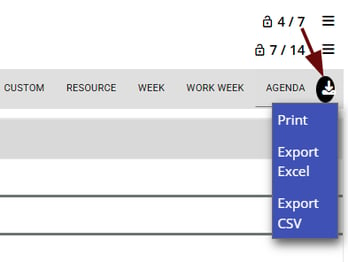
- Select whether you want to download the document in Excel or PDF (Print).
Which format should you choose?
Choose the format based on how you are going to use the file:
- Excel: if you want to edit the file afterwards.
- PDF: if you want to print the Agenda directly and have it on paper.
⚠️ Warning: the downloaded file shows the appointments that exist at the time of the download. Appointments that are created, modified or cancelled afterwards are not updated in the file.
What is the daily Agenda backup?
Every day, early in the morning, a backup copy of your Agenda is automatically sent to the email addresses provided by the center.
👉 What is the backup service and what does it include?
The email arrives with the subject Agenda Backup, followed by the name of the center and the date range it includes.
📌 Note: if you cannot find the email in your inbox, check your junk or spam folder.
✉️ If you do not usually receive the backup every night, contact soporte@spalopia.com to request a review of the email addresses it is sent to.
📩 If you have any questions during the process, please do not hesitate to write to us at soporte@spalopia.com