![spl-siana-imagotype-color.svg]](https://help.spalopia.app/hubfs/spl-siana-imagotype-color.svg)
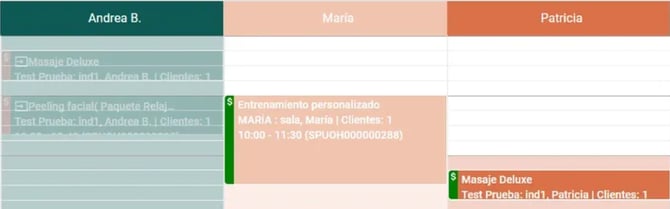
Check-in allows you to record a customer’s attendance at their appointment. Once completed, the system visually distinguishes between appointments that have already been attended and those that are still pending or marked as no-show.
💬 For example: If Andrea’s appointments appear marked as completed, it means the customers attended and their check-in was successfully recorded, while María’s and Patricia’s appointments are still pending.
In addition, check-in is a key step to:
-
Calculate completed services.
👉 Where can I view commission reports?
👉 Agenda reports | Services -
Register therapists’ working hours.
👉 Agenda reports | Therapists -
Calculate service commissions.
👉 Agenda reports | Therapists
How to check in an appointment?
🔍 How it works: Check-in can only be performed or undone on the same day as the appointment.
There are two ways to do it:
1. From the Agenda
-
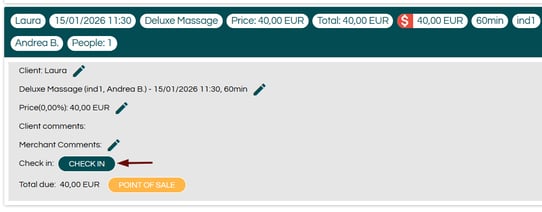
Open the appointment from the Agenda.
-
Click the Check-in button.
-
Save the changes.
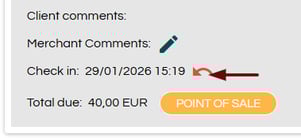
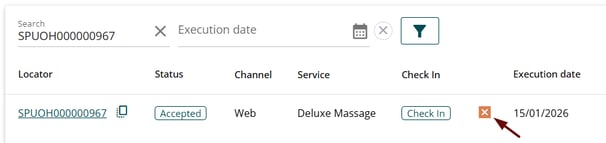
🔍 How it works: If you need to undo the check-in, open the appointment again, click the red arrow displayed next to the check-in date, and save the changes.
2. From Records > Appointments
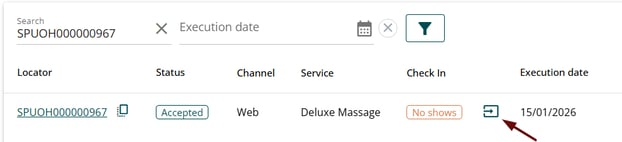
- Go to Records > Appointments.
- Locate the appointment using the Service date filter or the customer’s name in the search bar.
👉 How can I view a list of appointments? - Click the corresponding icon to register the check-in, or to undo it if needed.
📩 If you have any questions during the process, please write to soporte@spalopia.com