![spl-siana-imagotype-color.svg]](https://help.spalopia.app/hubfs/spl-siana-imagotype-color.svg)
You can cancel an existing appointment from two sections: Agenda or Records > Appointments.
- From the Agenda
- Locate the appointment in the Agenda.
- Click on it to open the booking confirmation.
- Select the corresponding cancellation option.
There are two possible scenarios:- Cancel an entire booking
Click Cancel all within the booking reference.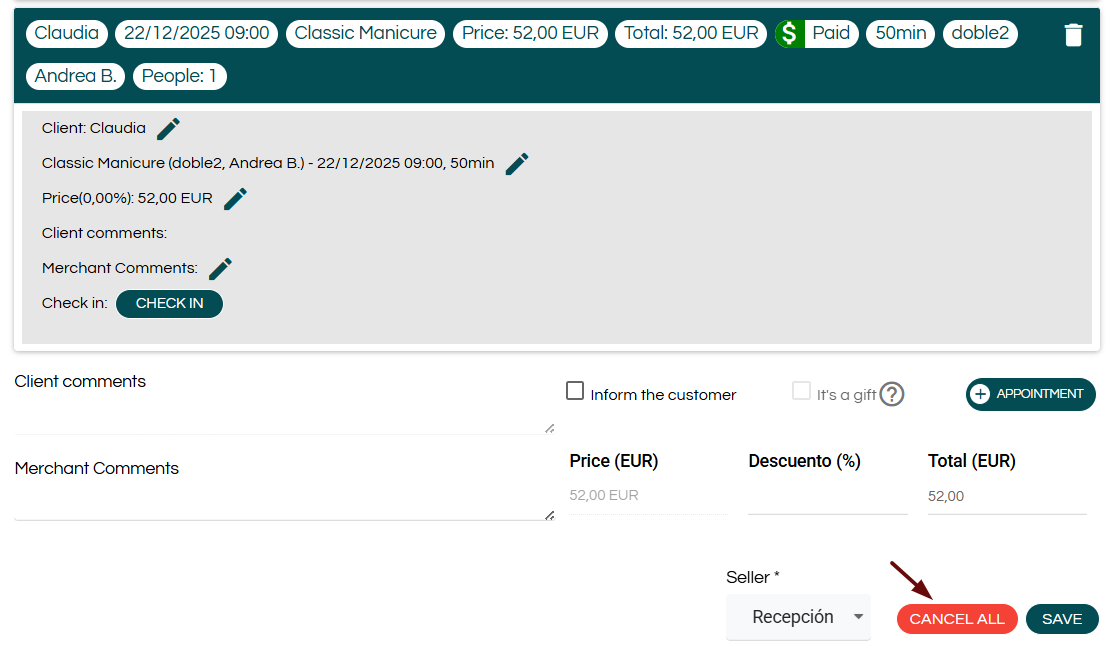
- Cancel an individual appointment
If the booking contains multiple appointments, you can cancel only one of them by clicking the trash icon next to the corresponding appointment.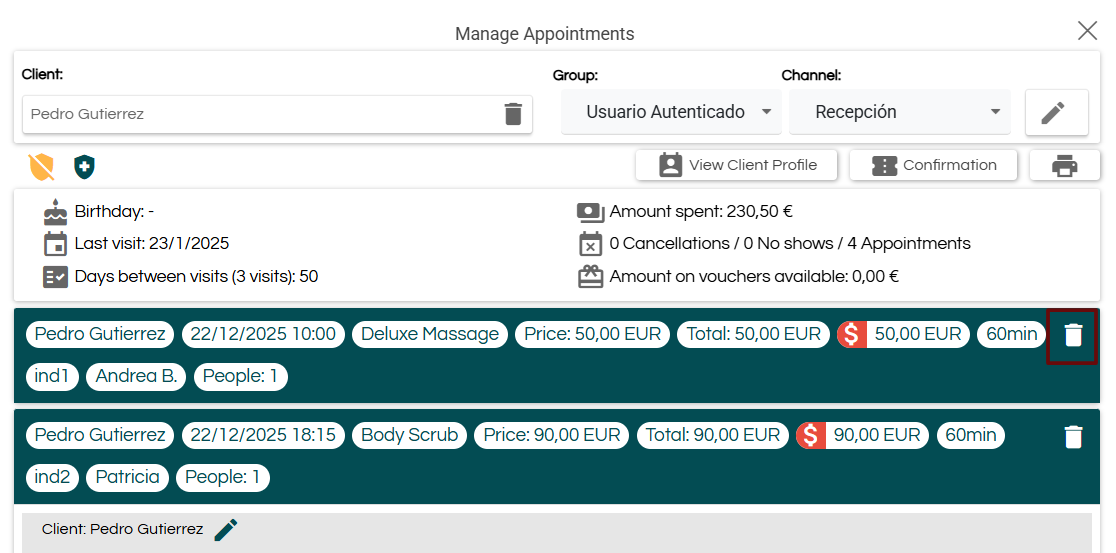
- Cancel an entire booking
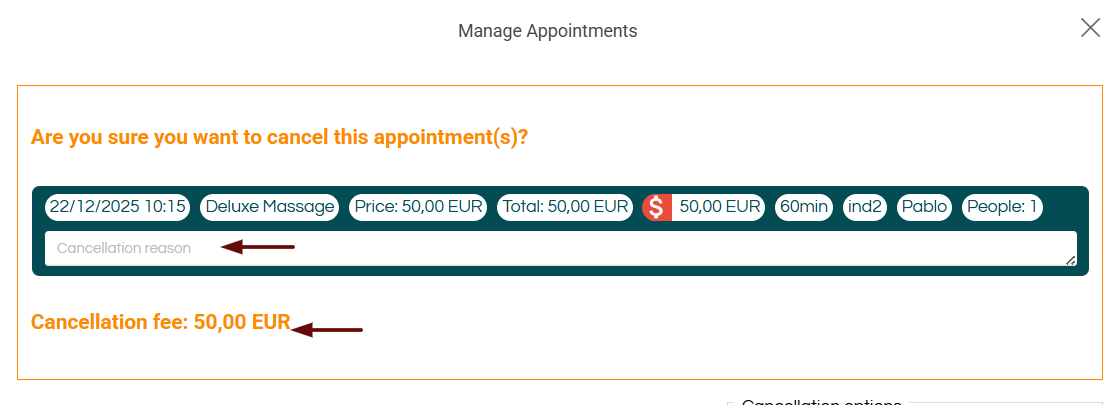
- A field will open to enter the cancellation reason.
- The system will display an alert showing the configured cancellation charges, if any.
- From Records > Appointments
- Go to Records > Appointments.
- Enter the booking reference in the Search by code field or use the available filters.
👉 How can I view a list of appointments? - Once the booking is located, click Cancel booking from the confirmation screen.
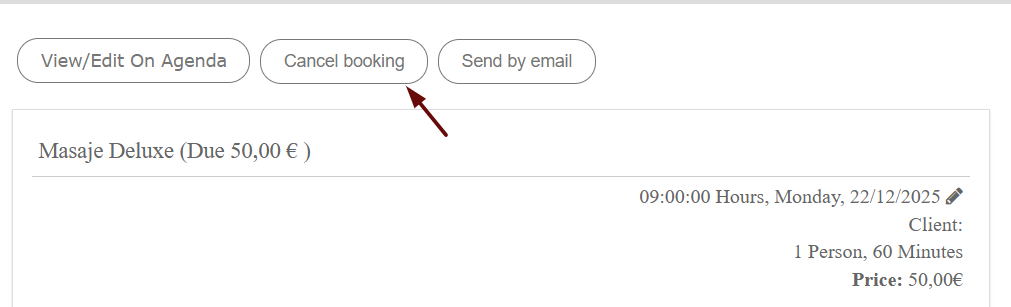
📌 Note: From this view, you can also enter the cancellation reason and review the applicable cancellation charges.
How to process cancellation charges?
The system does not automatically charge cancellation fees or process refunds. Therefore, you must manage the charge or refund manually in each case.
You have three available options:
-
Cancel without charges
No penalty is applied, even if the cancellation occurs outside the configured cancellation period. -
Charge later
Option available for non-prepaid online bookings, allowing you to apply the charge to the card registered in the booking.
🔍 How it works: This option is only available for bookings guaranteed or charged using Stripe. -
Point of Sale
If the appointment was created manually in the Agenda, you will not have access to the customer’s card details.
In this case, you must charge the cancellation fees directly at reception through the Point of Sale.
👉 How to charge a booking? | Module: Point of Sale
💡 Tip: You can request an advance payment when creating the booking to cover possible future cancellations.
👉 How to request payment confirmation from the Agenda?
How to process a refund?
The procedure depends on the payment method used:
-
Stripe
You can force the refund directly from the appointment confirmation.
👉 How to process a refund for a web purchase? | Stripe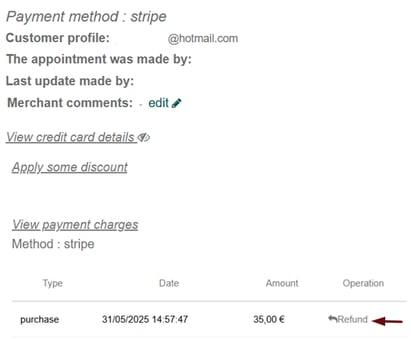
-
Virtual POS
The refund must be processed from the bank’s platform using the transaction ID shown in the confirmation.
🔍 How it works: This ID is only visible if you have the Point of Sale module contracted.
👉 How to process a refund with a Virtual POS?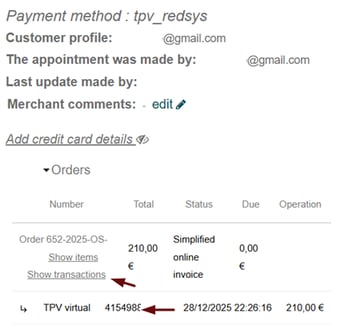
📩 If you have any questions during the process, please write to soporte@spalopia.com