![spl-siana-imagotype-color.svg]](https://help.spalopia.app/hubfs/spl-siana-imagotype-color.svg)
From Records > Vouchers you can view the full history of gift voucher sales made at your center. You can find a specific voucher, filter the list according to the information you need and download it.
How do I find a voucher?
You can search for a voucher using any of these details:
- The voucher locator.
- The customer’s first name and/or surname.
- The customer’s email.
- The purchase date or exchanged date.
What filters can you add?
To expand the search options, click the filters icon and select the filters you want to add.
Status
- Accepted: confirmed vouchers.
- Pending: vouchers awaiting confirmation from the customer, after a request sent from the Point of Sale.
👉 How to sell a gift voucher at the spa reception? - Cancelled: cancelled vouchers.
- Incomplete: vouchers that are not confirmed within the set time limit and automatically change from Pending to Incomplete.
📌 Note: to view vouchers with Incomplete status, clear any date set in the purchase date filter.
Payment
- Paid: voucher paid in full.
- Pending: voucher pending payment.
- Free: voucher at no cost (€0).
- Partial: voucher with a payment lower than the total.
Sales channel
-
Allows you to filter vouchers sold through a specific channel.
👉 How to create and/or modify sales channels?
Customer group
-
Allows you to filter vouchers by the group assigned to the customer.
👉 How to create and/or modify customer groups in the CRM?
Exchanged
- Expired: voucher whose validity has expired without being exchanged.
- Exchanged: voucher exchanged within its validity period.
- Not exchanged: voucher that is still active and has not been used.
- Partial exchanged: voucher that has not been used in full.
- Expired partial exchanged: voucher that has expired with an unused balance.
👉 How to redeem a gift voucher in the back office?
Search by comments
-
Allows you to filter by the seller’s comments associated with the voucher.
How do I clear or remove a filter?
Each filter you add from the filters icon shows an X on its right.
- Click the X on the filter.
🔍 How it works: the filter is cleared, the list is updated and the filter stays in the bar so you can choose another value. - Click the X on the same filter again.
🔍 How it works: the filter disappears from the bar and is available again in the filters icon. If the filter was already empty, it is removed with a single click.
📌 Note: filters that always appear, such as dates, can be cleared with the X, but they are not removed from the bar. When they are empty, they do not show the X.
How do I select a single option in a checkbox filter?
In checkbox filters, such as Customer group, the All option appears checked together with all the other options.
- Open the filter.
- Uncheck All.
- Check the option you need.
- Close the list.
📌 Note: if you close the list without checking any option, the filter goes back to All.
How do I reset all filters?
To return all filters to how they were when you opened the list, click the circular arrow icon to the right of the filters icon.
🔍 How it works: this icon only appears when a filter has been changed. When you click it, the list goes back to the first page.
⚠️ Warning: when you reset the filters, the column order also goes back to the default.
How do I download the list?
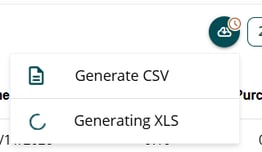
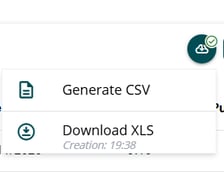
You can download the voucher list in .xls or .csv format. During the download, the system shows two statuses:
- Loading the database: the system is preparing the file.
- Ready to download: the confirmation icon is enabled so you can get the file.
📩 If you have any questions during the process, please do not hesitate to write to us at soporte@spalopia.com