![spl-siana-imagotype-color.svg]](https://help.spalopia.app/hubfs/spl-siana-imagotype-color.svg)
Normally, services are available during the spa’s opening hours.
👉 How to configure the center opening hours?
You only need to configure a specific schedule if you want to limit bookings to certain days of the week or to reduced opening hours.
💬 For example, for a yoga class that only takes place on specific days, or for a night circuit or a weekend-exclusive experience.
How to activate and configure a specific schedule?
First, you need to activate the option in the service settings:
- Go to Manage > Treatments and select the service you want to edit.
- In the Schedules section, enable the Specific schedule option.
⚠️ Once this option is activated, the service will not be available for booking until you configure its schedule.
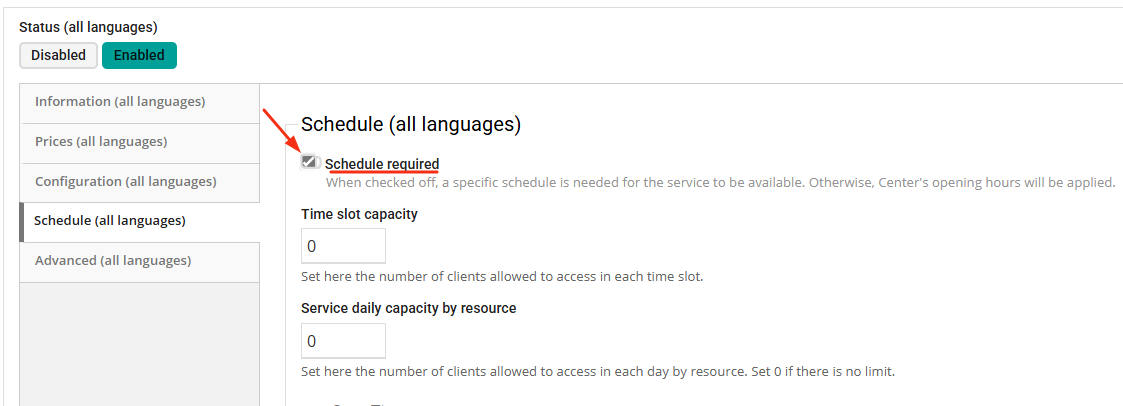
Next, to configure the schedule, go to Calendar > Schedules > Service Schedule and follow these steps:
📌 You can select several services if they share the same schedule.
📌 Please note that it is only possible to configure one concept per day. This means you cannot configure morning availability and afternoon blocking on the same day. In such cases, you should only configure the available shift.
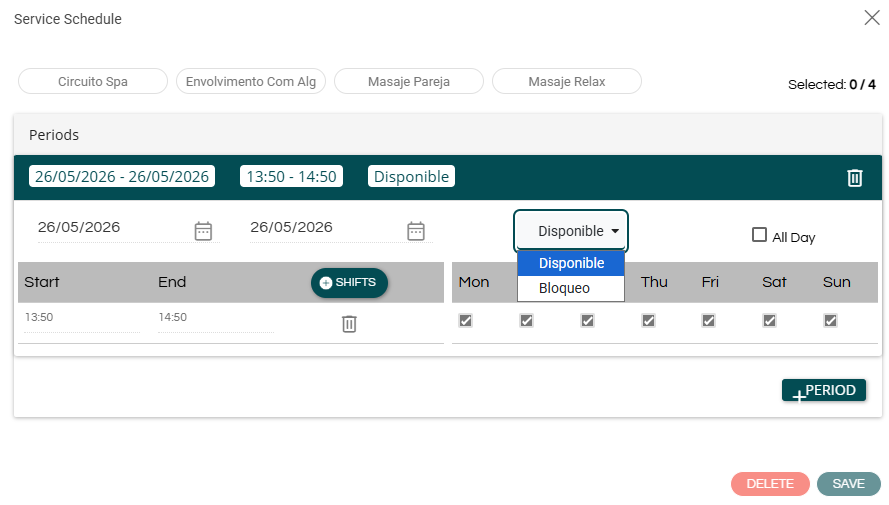
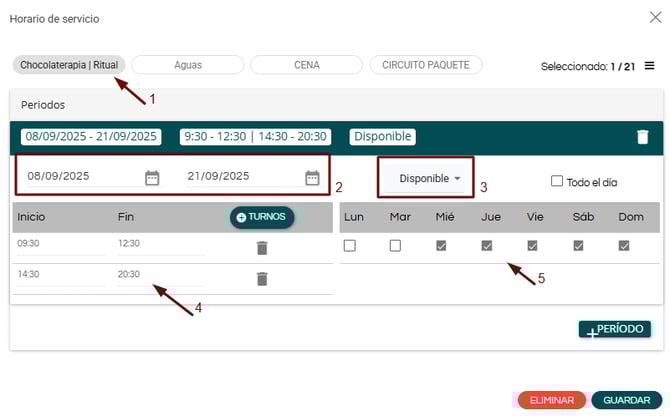
5. Define the schedule for the selected date range.
- If the schedule is continuous, choose a start and end time.
- If it has split shifts, use the +Shifts button.
- If the schedule applies all day, enable the All day option.
👉 How to configure the center opening hours? - Uncheck the days of the week when the service will not be available.
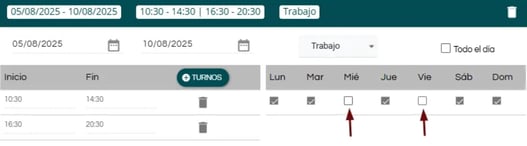
-
If you need to add another schedule for the same service with a different date range, use the +Period button.
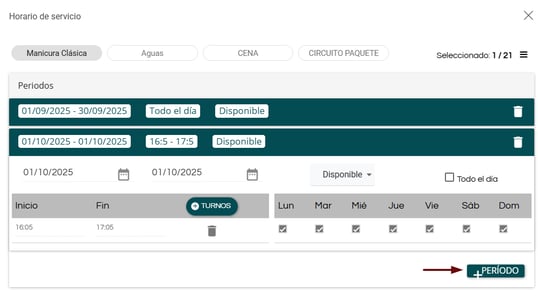
- Remember to SAVE the changes before leaving.
💬 In this example, the Chocolatherapy service (1), from 08/09 to 24/09 (2), will be available (3) from 9:30 am to 12:30 pm and from 2:30 pm to 8:30 pm (4), every day except Mondays and Tuesdays (5):
How to modify a service schedule
To modify an existing schedule, go to Calendar > Schedules > Service Schedule.
- Click the red "+" button in the bottom-right corner.
- Select the service and the date range you want to modify.
- Click “All day” and select Delete.
💡 If you want to modify a schedule, we recommend first deleting the existing period and then adding a new one to avoid confusion.
Once deleted, repeat the steps in the previous section to configure the new schedule for the selected date range.
📌 If you modify a schedule that affects an existing booking, the system will notify you.
How to delete a service schedule?
If you want the service to stop having a specific schedule and become available throughout the spa’s opening hours again (provided there is a therapist available, if required), follow these steps:
- Click the red "+" button in the bottom-right corner.
- Select the service and the date range you want to modify.
- Click “All day” and select Delete.
- Go to Manage > Treatments and select the relevant service.
- In the Schedules section, disable the Specific schedule option.
📌 If you delete a schedule that affects an existing booking, the system will notify you.
👉 How to manage appointments affected by schedule changes?
✉️ If you have any questions during the process, please do not hesitate to contact us at soporte@spalopia.com.