![spl-siana-imagotype-color.svg]](https://help.spalopia.app/hubfs/spl-siana-imagotype-color.svg)
Registering your sellers allows you to assign the sale of a service or product to an employee, making it easier to generate sales reports and automatically calculate commissions.
💡Tip: If you work with an employee commission system, we recommend reviewing these related manuals:
👉 Service commission
👉 Booking sales commission
👉 Payment commission from the Point of Sale
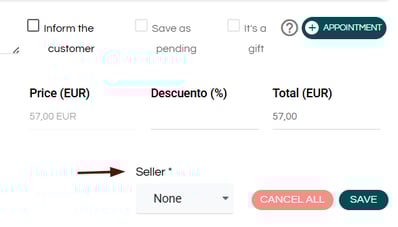
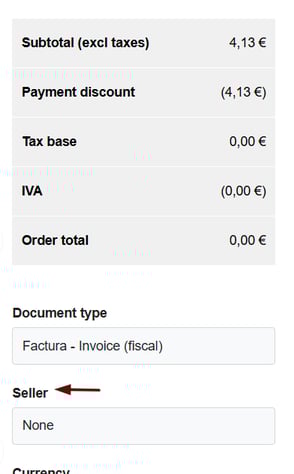
Sellers can be selected both from the Agenda and from the Point of Sale.
Agenda:
Point of Sale:
Who can be a seller?
All employees created in Agenda > Employees can act as sellers.
There are two common profiles:
- Therapists who perform services.
👉 How to create and configure an employee? - Employees who do not perform services (for example, reception staff who manage sales).
If you need to register an employee who does not perform treatments, keep the following recommendations in mind during their configuration:
- Do not enable the Online bookable option.
- Do not assign services to their profile.
- If you manage multiple centres, you can mark them as Shared so they can sell across different centres.
🔍 How it works: If you configure the employee as shared, you must activate them in each centre individually.
👉 How to configure an employee with a shared agenda between centres?
How to link a seller to a user account?
For the system to automatically associate a booking or sale with the user logged into the back office, the seller must be linked to their user account.
To do this, follow these steps:
- Go to Agenda > Employees.
- Locate the employee you want to edit.
- Select their user from the User dropdown.
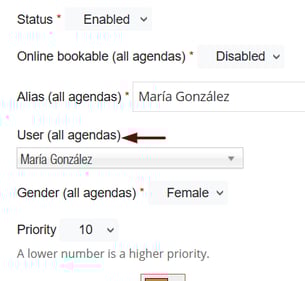
📌 Note: The name shown in this dropdown matches the name displayed on the login screen.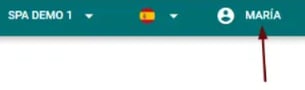
💡 Tip: If you do not want to select a seller for every new booking or sale, you can create a generic seller (for example, Reception) and link it to the back-office user account.
📩 If you have any questions during the process, please write to soporte@spalopia.com