![spl-siana-imagotype-color.svg]](https://help.spalopia.app/hubfs/spl-siana-imagotype-color.svg)
Activating an important message allows you to display a highlighted notice to your client just before they begin a purchase in your Booking Engine.
This feature is especially useful for communicating internal policies, mandatory requirements, contraindications, centre rules, or any important information the client should know before proceeding.
Where can the important message be activated (and deactivated)?
Go to Agenda > Settings > Important alert.
- Write the message you want to display to your client.
💡 Tip: include the text in all active languages in your back office. - Click ACTIVATED and save changes to enable the notice.
📌 To deactivate it, return to this section and untick the “activated” option.
Which formats can you use to style the message?
You can apply basic formatting using the following HTML tags.
💡 Tip: these improve the readability of the message and help clients identify key information more easily.
<strong>TEXT</strong>→ bold text<em>TEXT</em>→ italic textTEXT<ul>→ add at the end of a sentence where you want to insert a line break<li>TEXT</li>→ defines each item within the list
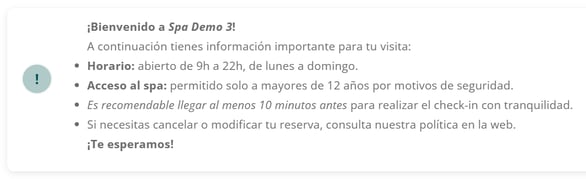
💬 For example:
How is the message displayed in the Booking Engine?
The important message appears as a highlighted box at the top of the Booking Engine, making it the first thing the client sees when accessing it.
The applied styles (bold, italic, lists, etc.) will be displayed according to the configuration, as shown in the previous example.
In addition, this box includes an exclamation icon whose border automatically adopts the light colour defined in the Booking Engine design settings (the same colour used in the lower section of the service card where the price, duration, and capacity are displayed), ensuring a consistent appearance with the centre’s overall customisation.
👉 How to customise the design of your Booking Engine?
✉️ If you have any questions during the process, please do not hesitate to contact us at suporte@spalopia.com