![spl-siana-imagotype-color.svg]](https://help.spalopia.app/hubfs/spl-siana-imagotype-color.svg)
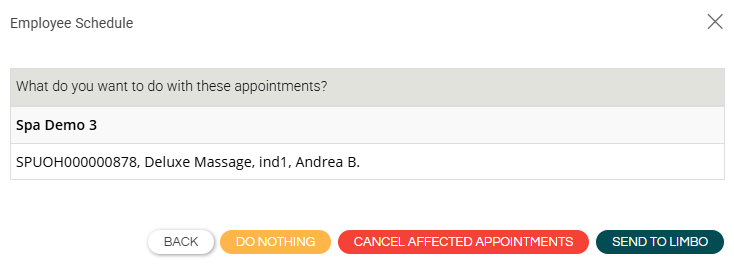
When you edit resource or therapist schedules from Agenda > Schedules > Resource / Professional schedule or Agenda > Calendar, some already scheduled appointments may be affected. In this case, the system will display a window with the following options so you can choose how to manage them:
-
BACK
Returns to the previous screen so you can review or adjust the schedules before saving. -
DO NOTHING
Saves the schedule changes but keeps the appointments assigned to the same professional or resource, even if they no longer have availability.
📌 Note: You will need to open each appointment in the Agenda and modify it manually.
👉 How to edit an appointment? -
CANCEL AFFECTED APPOINTMENTS
Cancels the appointments affected by the schedule change.
⚠️ Warning: This action cannot be undone.
👉 How to cancel an appointment? -
SEND TO LIMBO
Saves the changes and keeps the appointments in the Agenda, but moves them to the None column (with no resource or therapist assigned).
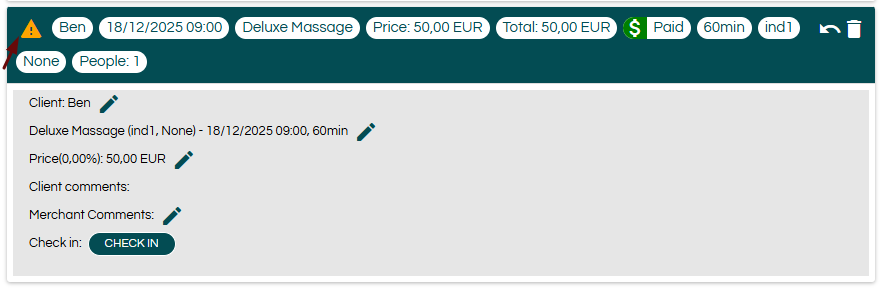
🔍 How it works: You will see a warning icon (⚠️) indicating that the appointment has no assignment. You must then edit it to assign a resource or therapist.
👉 How to edit an appointment?