![spl-siana-imagotype-color.svg]](https://help.spalopia.app/hubfs/spl-siana-imagotype-color.svg)
Siana allows you to connect an online payment account through PayPal to your back office, so you can manage payments from the Booking Engine.
Before starting the setup, contact soporte@spalopia.com so the account can be checked and prepared.
Once support confirms that you can continue, complete the connection from the PayPal payment method settings.
- Access the link provided by the team, or go to Settings > Payments > Payment methods and locate the line created under the PayPal payment method.
- Open the Live Config section.
- Open your PayPal account in another tab.
- In PayPal, follow this path: PayPal Checkout > Get started > Integration option.
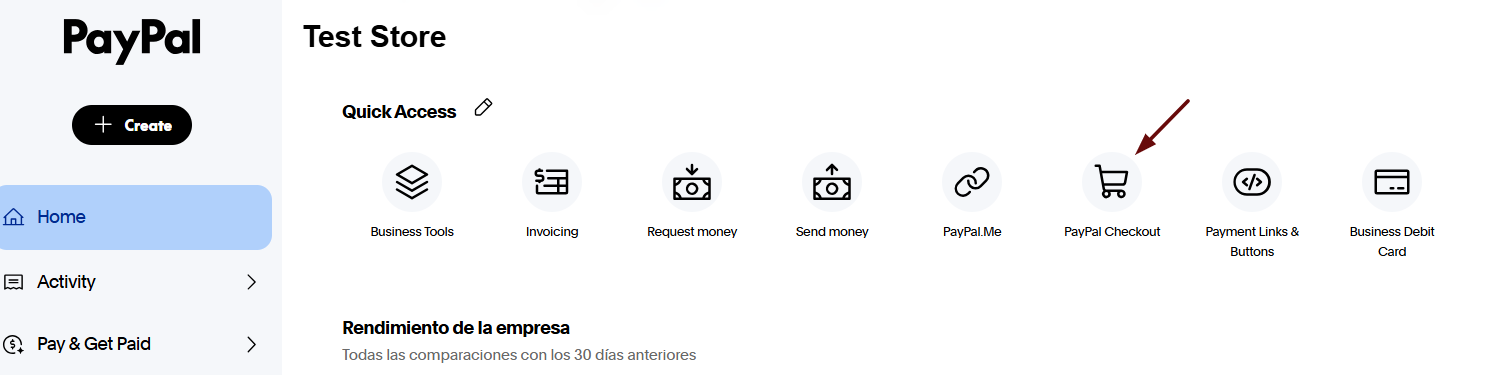
- Select Standard or Advanced, depending on your account configuration.
- In PayPal, follow this path: PayPal Checkout > Get started > Integration option.
- Locate the API credentials section:
- Copy the API Key and paste it into the Client ID field in the back office.
- Copy the Key and paste it into the Secret field in the back office.
- Click Set up web experience profile in the back office.
- Wait for the system to complete the process and reopen the PayPal configuration line.
- Check that the information has been completed correctly.
- Save the changes.
- Notify soporte@spalopia.com so the internal tests can be carried out and the integration can be confirmed as completed.
📩 If you have any questions during the process, please do not hesitate to contact us at soporte@spalopia.com